In the Employee role, you will be completing the Self-Evaluation and Signature for an Annual evaluation.
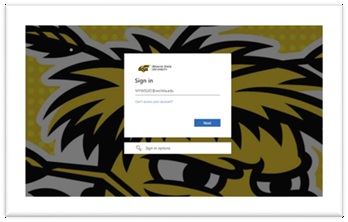
Login to myPerformance
- Login to myPerformance
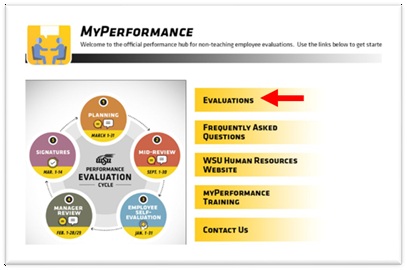
Select the Review
- Select the Evaluations link.
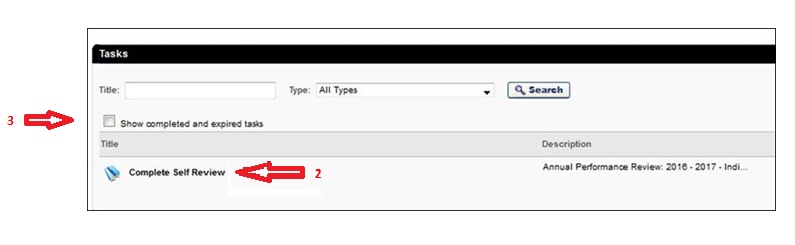
- To access your evaluation before first submission in a step, select the evaluation in the Tasks lists.
- To access your evaluation if you have already submitted information into it previously, check the box for “Show
completed and expired tasks”, then select the evaluation in the Tasks list.
STEP TWO – EMPLOYEE SELF-EVALUATION
During the Employee Self-Evaluation, the employee will submit any notes, comments, achievements, or concerns regarding the entire review period. This aids the manager in their decisions in rating the employee for the review period.
The Overview page shows the employee’s name, position, date of evaluation, and an
overview of the process for the type of review being completed.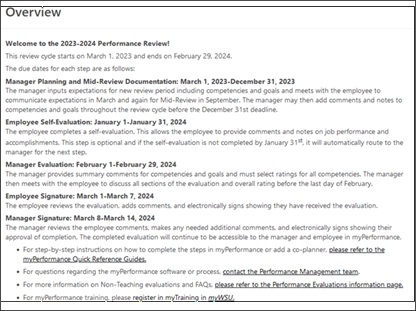
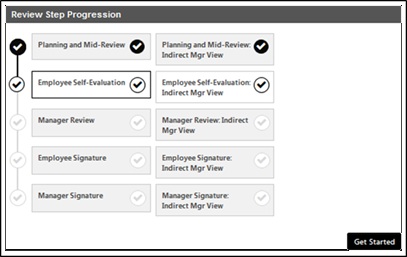
Review Step Progression
The Overview screen also shows Review Step Progression and designates the current
step. A side bar shows your progression through the current step. Click the Get Started button.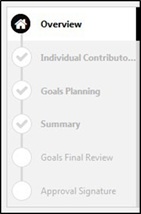
Competencies
All employees are evaluated on competencies aligned with the University’s Strategic Plan and the employee’s position knowledge. There are six core competencies. Managers and Budget Officers/Budget Review Officers have additional competencies.
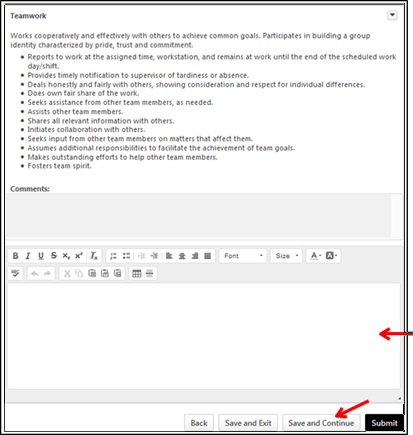
Each competency is defined by a set of desired behaviors. During the planning session, managers and employees should discuss how the competencies apply to the employee’s position and identify examples of how specific competencies tie into the employee successfully completing their job duties. During the self-evaluation the employee should provide comments and notes on job performance and accomplishments as they relate to each competency.
Read the comments and expectations that were added during the Planning and Mid-Review Step by your manager. To add comments, type in the open text boxes.
When finished with each Competency, click Save and Continue.
Goals
This section is optional and will not be weighed or rated during the end of the review period. Your manager may have added goals during the Planning and Mid- Review. Some examples include:
- For specifics in helping an employee in their position knowledge
- To help an employee develop to the next level
- To let the employee choose their own goals for self-development
- For work on a specific project
If you wish to comment on any goals at this time, a comment box is available in the
lower half of the screen. When finished, click Save and Continue.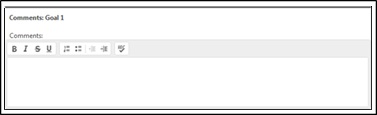
Additional Comments
Read the additional comments that were added during the Planning and Mid-Review Step
by your manager. To add comments, type in the open text box. When finished, click
Save and Continue.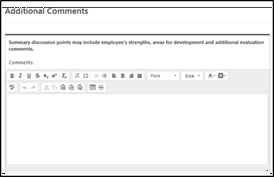
Summary
The Summary section will have no content until Step 3. YOU MUST CLICK THE Submit BUTTON.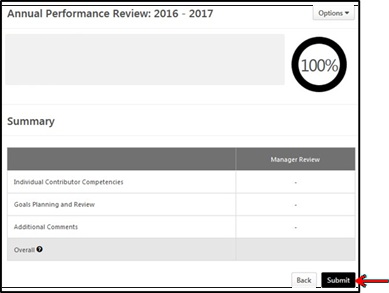
**Employees should follow these same instructions above to access the evaluation anytime during Step 2 of the evaluation period to add additional comments and/or edit existing comments. On the due date for Step 2, the review will advance to the manager to complete Step 3- Manager Review. Upon the due date for Step 3, the evaluation will return to the employee to complete Step 4 – Employee Signature.
Options
By selecting the Options menu, the employee will be able to print the review or view/add
an attachment.
STEP FOUR – EMPLOYEE SIGNATURE
The employee reviews the evaluation, adds comments, and electronically signs showing they have received the evaluation.
Login through myWSU and access the review (see page 1 for instructions).
Review Step Progression
The Overview screen also shows Review Step Progression and designates the current
step. A side bar shows your progression through the current step. Choose the Get Started button.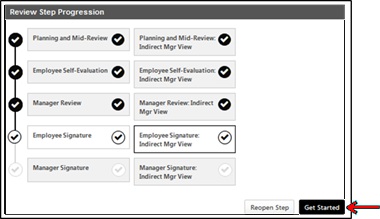
Competencies
This section allows the employee to view previous comments and the ratings for each
competency. This section is view-only. Click Next to advance to next page.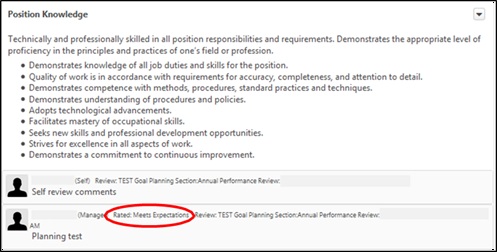
Goals
This section allows the employee to view previous comments for each goal in the lower
section of the screen. This section is view-only. Click Next to advance through this page.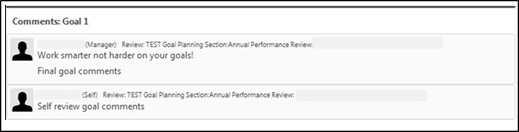
Additional Comments
This section allows the employee to view summary comments for the overall review period.
Click Next.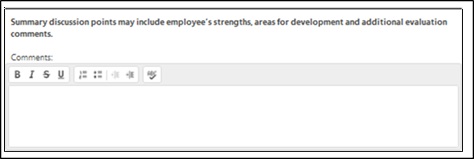
Rating Summary
In the Summary section, the employee will be able to view the overall rating calculation.
The employee can also print the review or view attachments at the end of the review
period. Click the Options button to print the evaluation or view attachments, if desired.
Otherwise, click the Next button.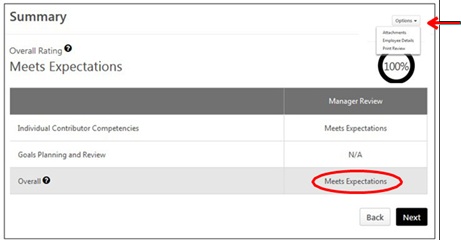
Sign the Review
The employee will electronically sign the review by typing their name into the text
box. Type first and last name, then click the Sign button. The employee will also be able to add additional comments in a comments box
before submitting the signed review. Once completed with comments and signature, click Submit.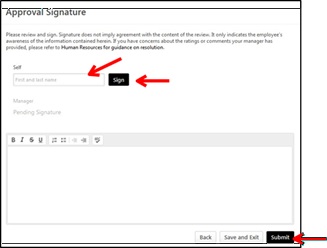
Submit Review
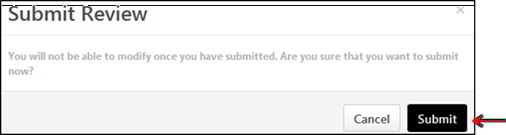
A box will appear asking if you are sure you want to continue.
Click the Submit button.