

Member Administration Portal Guidance:
Initial/Open Enrollment – Making Elections
Purpose :
Instructions to make Initial or Open Enrollment elections in MAP.
Instructions :
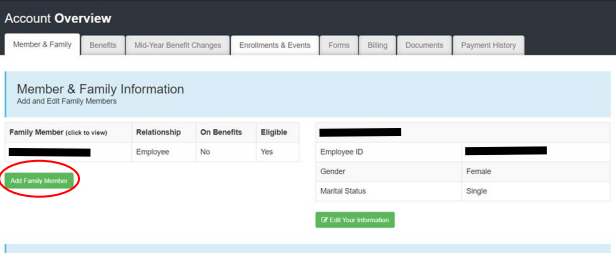
If adding new dependents for coverage select “Add Family Member” and complete this
process for each dependent.
Please note, once all elections have been made, it is important to verify that the correct covered dependents are listed for each election.
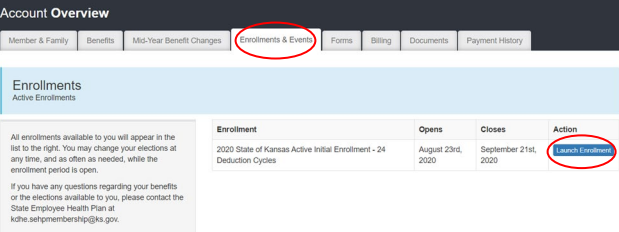
Navigate to Enrollments & Events tab, then click “Launch Enrollment”
On the Welcome screen, note the status table to the right. If the Status field reads "Not Yet Submitted," your elections have not been made. When the field reads "Enrollment Has Been Submitted," elections have been received by SEHP.

For your initial enrollment, you will have no previous elections to display on the Welcome screen. During open enrollment, at the bottom of the Welcome screen, your current elections are listed, including the member semi-monthly cost for each coverage type. If you wish to make the same elections for next year, you should make note of these coverage options.
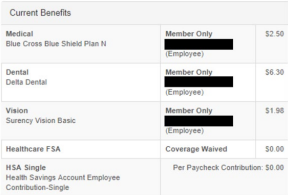
Before entering the enrollment portal for the first time, you will see the following message display beside current benefits. Once your elections have been completed, the most recent completed enrollment will be displayed in this pane. During open enrollment, you are able to complete the enrollment process as many times as necessary before the end of Open Enrollment, but all elections must be made each time (i.e., to add vision coverage to previously elected medical coverage, both medical and vision must be elected on the next enrollment). During your initial enrollment, once your elections are made the portal will close for processing.
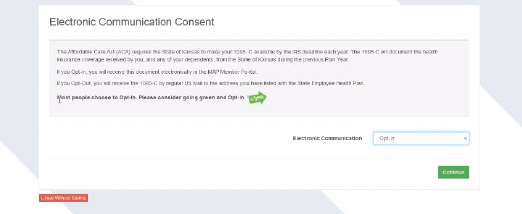
The next screen is for Electronic Communication Consent. If you choose to Opt-In you will receive your Form 1095 online through MAP; if you choose Opt-Out you will receive a paper copy of your Form 1095 in the mail at the address you have listed in MAP.
The next several screens of the enrollment portal will ask you to verify contact information.
Carefully confirm that all information is correct, as new cards, plan documents, and
other critical information will be sent to members using this contact information.
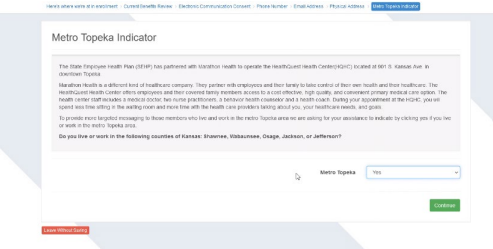
The SEHP opened the HealthQuest Health Center in Topeka, KS for primary care medical
services. On this screen, indicate if you live in the Metro Topeka area.
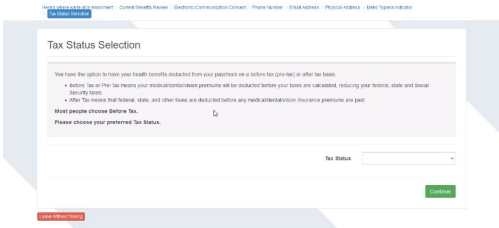
You will have the option to pay premiums on a before-tax or after-tax basis. The majority of members elect before-tax to take advantage of tax incentives and increased take-home pay. However, members who elect after-tax premiums can end coverage or remove dependents mid-year without a qualifying event.
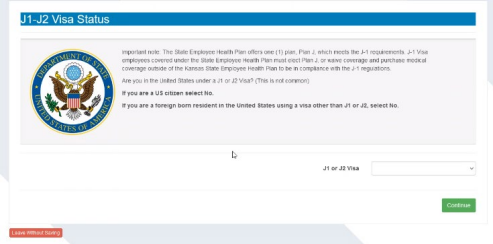
You will be asked to confirm whether you are in the United States on a J-1 or J-2 visa. Due to insurance coverage requirements for individuals who are in the United States on a J-1 or J-2 visa, only Plan J is available to these individuals.
Each coverage type is elected on a separate screen. However, all coverage election
screens have certain commonalities:
1. The option to Waive Coverage appears at the top of the options as a checkbox highlighted
in yellow.
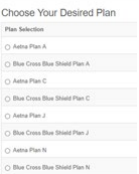
2. Plan options, if applicable for the coverage type, are listed as radio buttons. Only one can be selected.
3. Dependents, if any have been added as family members, will appear as checkboxes.
Any or none can be selected for each coverage type. For a dependent to be eligible
for coverage, the employee must also elect that coverage. Each coverage type is offered
and can be elected as a standalone option.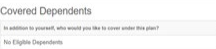
4. The calculated rate will update to reflect coverage options and dependents selected.
5. If additional information is included about the coverage or plan options, it will be shown in the grey box above coverage options.
You’ll complete each election and click “Continue” to move on to the next election
screen. If you enroll in Plan C or Plan N, you will be prompted to elect either an
HRA or HSA after the Medical Election screen. If you enrolled in either of those plans,
enrollment in an HRA/HSA is not optional.
Before submitting final enrollment elections, review all elections options and make
certain that the correct covered dependents are listed for each election. Make sure
you click to submit your elections.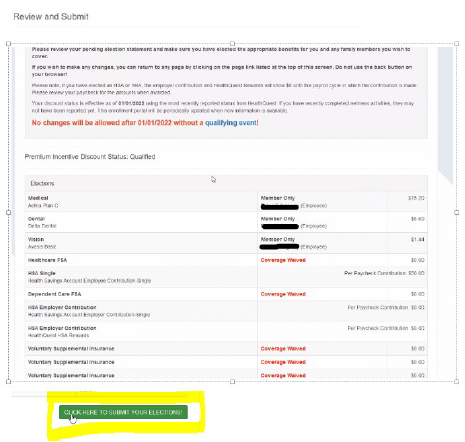
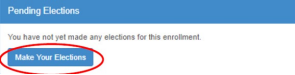
A Pending Elections Statement will then be displayed as confirmation that your complete
enrollment has been submitted. This statement will also be sent to the primary email
contact in MAP. If you do not see the below Pending Elections statement at the end
of your enrollment and receive the email, you have not completed your enrollment.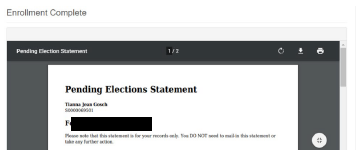
Note: During open enrollment, some members may find that some coverage options show $0.00 cost on their confirmation. This can be due to pending HealthQuest premium deductions and/or HealthyKids application status. By the end of open enrollment, the correct rates should display in MAP when you review your benefits.