

Office of Instructional Resources
Blackboard Accessibility Guide
Anthology Ally is built into Blackboard and helps you make your course materials usable for every student. It gives your students alternative ways to open your files, and it gives you a private accessibility score with step-by-step feedback on how to improve. This guide covers what you'll see in your course and what to do about it.
Microlearning for Accessible Teaching
On this page
The accessibility gauge
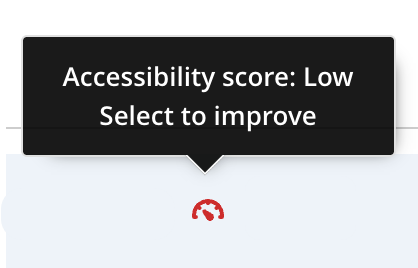
Wherever you add a file, Ally places a small colored gauge dial beside it. The color tells you at a glance how accessible that file is. Select the gauge to open the instructor feedback panel, where Ally explains each issue and walks you through fixing it. Students never see this indicator.
The Course Accessibility Report
The course-level report gives you the big picture. In Blackboard Ultra:
- Open your course and look under Details & Actions.
- Select Books & Course Tools.
- Choose Accessibility Report from the available tools.
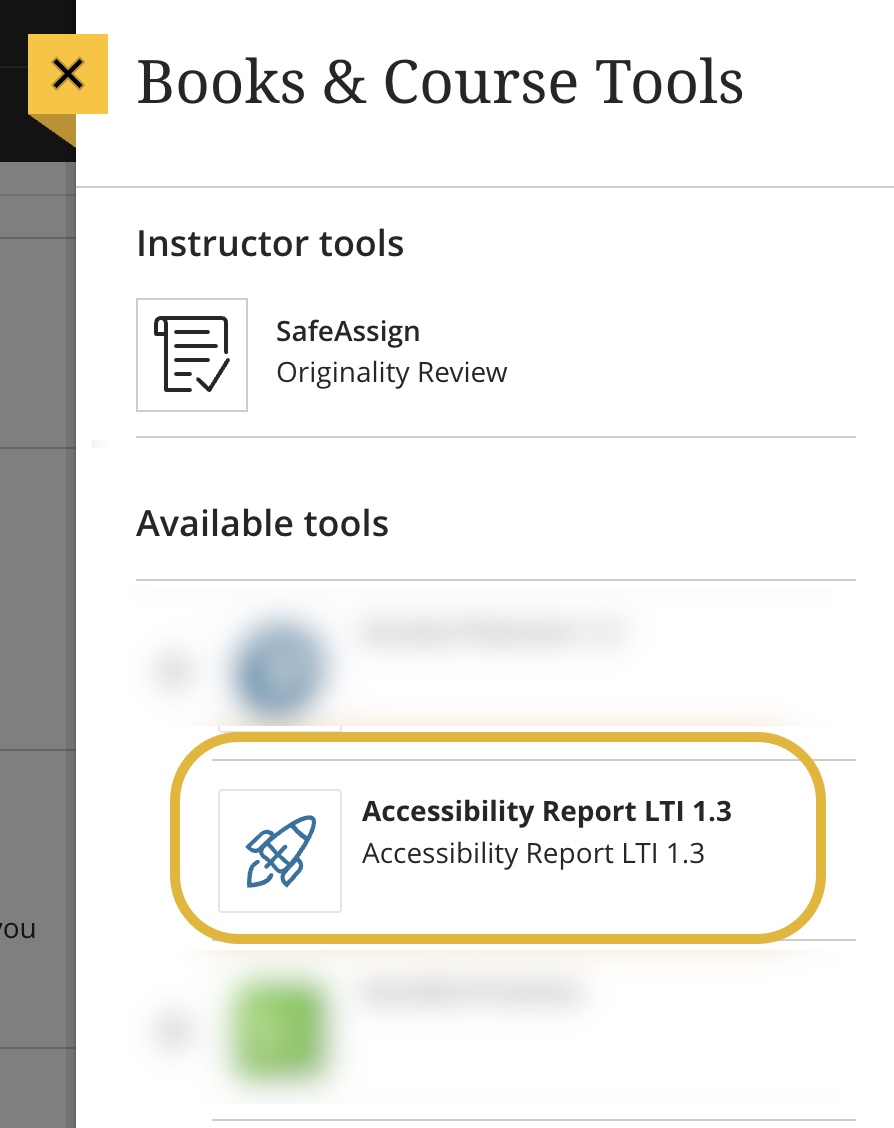
Don't see the Accessibility Report? It may need to be enabled for your course. Contact the Office of Instructional Resources and we can help.
How long does scoring take?
After you upload or edit content, Ally usually finishes processing in about 15 to 90 seconds. Larger or more complex files can take longer. Ally only reads your files; it never stores, moves, or deletes the originals.
Ally gives every supported file a score from 0 to 100 percent, shown as a colored dial. The score reflects both the number and the severity of the issues found, so fixing one serious problem often raises your score more than fixing several small ones.
| Rating | Range | What it means |
|---|---|---|
 |
0–33% | Needs help. There are severe accessibility issues. Make this content a priority. |
 |
34–66% | A little better. The file is somewhat accessible but still needs improvement. |
 |
67–99% | Almost there. The file is accessible, but more improvements are possible. |
 |
100% | Perfect. Ally didn't identify any issues, though further improvements may still be possible. |
What Ally checks
Ally reviews the content types you use most:
- Word
- PowerPoint
- OpenOffice and LibreOffice
- Uploaded HTML
- Images (JPG, GIF, PNG, BMP, TIFF)
- Content typed in the Blackboard editor
- YouTube captions
Note about video: auto-generated YouTube captions are not counted as valid captions. Caption checks don't currently affect your overall score, but adding real captions is still one of the most valuable things you can do for students.
From a score to a fix
Select any gauge to open the instructor feedback panel. You can review all issues at once or work through them one at a time. For images, PDFs, Office files, and editor content, Ally shows an in-browser preview that highlights exactly where the problems are, such as an image missing a description or a table missing headers.
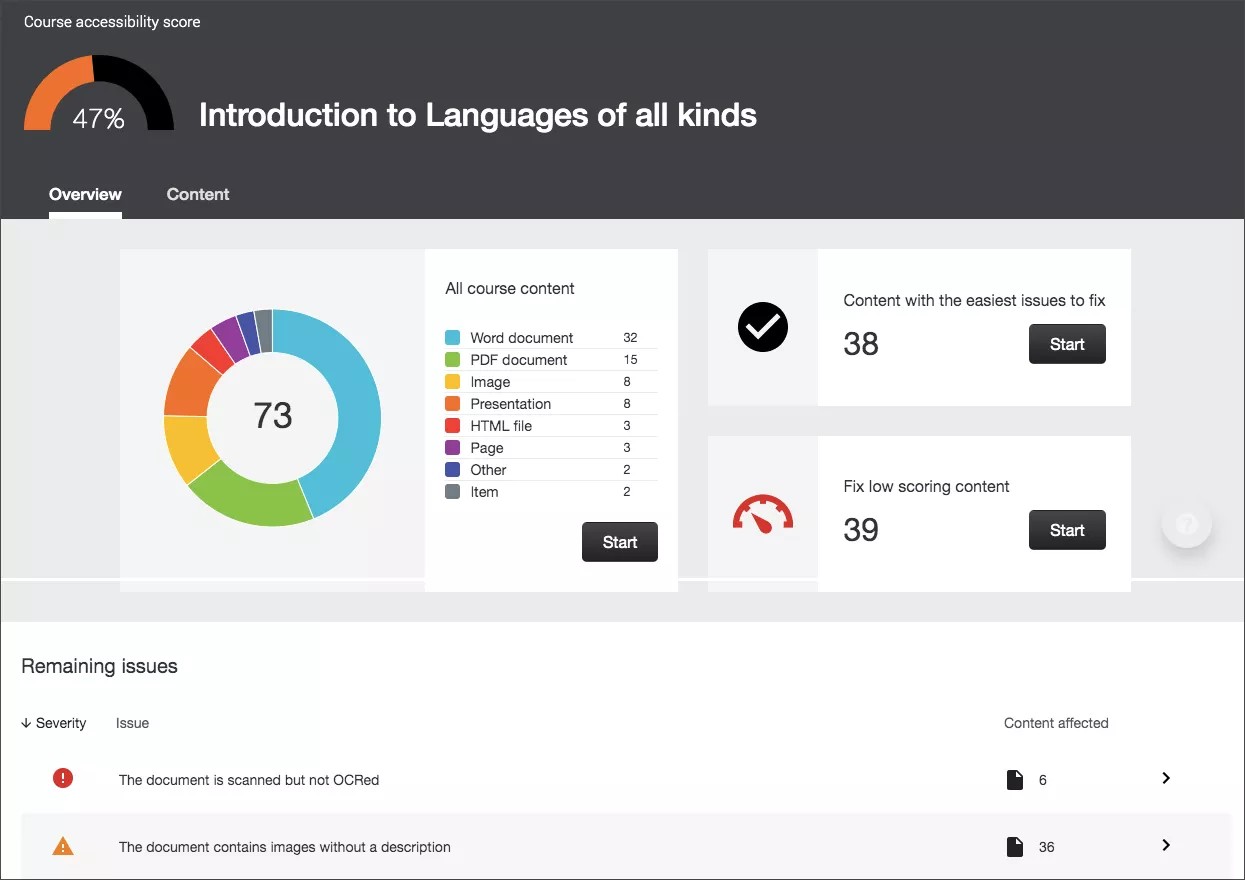
The gauges help you fix one file at a time. The Course Accessibility Report gives you a dashboard view of your whole course, which makes it the best place to decide where to start.
Overview tab
Your overall course accessibility score, your content grouped by type, and the issues found across the course.
Content tab
The specific items that contain issues, so you can work through them systematically and track your progress.
Issues are ranked by severity
| Priority | What to do |
|---|---|
 |
The greatest risk to accessibility. Address these first. |
 |
Significant impact on students. Worth addressing soon. |
 |
Smaller refinements that will raise your scores. |
Two ways to make progress
- Start with the easiest fixes. Ally can point you to the content with the quickest wins, which is a fast way to raise your course score and build momentum.
- Start with the lowest scores. If you'd rather tackle the biggest problems first, sort by lowest-scoring content and work your way up.
The report also reviews content you type directly into Blackboard, including assignments, discussions, your syllabus, pages, and announcements, not just uploaded files.
This is the part your students see. Next to each of your files, Ally adds a menu where students can download the same content in the format that works best for them, with no accommodation paperwork required. You don't create these formats; Ally generates them automatically from the file you posted.
Tagged and OCR'd PDF
A properly structured PDF. Scanned pages become real, searchable text.
Semantic HTML
A clean, mobile-friendly web version that reflows to fit any screen.
Audio (MP3)
A spoken-word version for listening while commuting or resting tired eyes.
ePub
An e-book format for e-readers and tablet reading apps.
Electronic braille
BRF files for use with refreshable braille displays.
Translated version
Machine translation into more than 70 languages for multilingual learners.
BeeLine Reader
A color-gradient view that helps the eye move from line to line.
Immersive Reader
A distraction-reduced reading view with read-aloud support.
How it works: formats are created on demand. The first request may take a minute or two, then the format is cached so it downloads instantly afterward. Translation accuracy varies with the language and with any technical terms or slang in your document.
The more accessible your original file is, the better every one of these formats becomes. That's why improving the source document is the most useful thing you can do.
Most accessibility fixes are small habits that take seconds once you know them, and they carry over to every document you create.
Everyday checklist
- Use real headings. Apply built-in heading styles in a logical order rather than making text big and bold.
- Add alternative text to images. Describe the full meaning of the image, and mark purely decorative images as decorative.
- Check color contrast. Make sure text stands out clearly from its background.
- Avoid scanned PDFs. Scanned pages are only images. Start from the original document when you can.
- Tag your PDFs so screen readers can follow the structure.
- Use tables for data only, and always give them column headers. Don't use tables for layout.
- Write descriptive link text. "View the syllabus" is far more useful than "click here."
- Use built-in lists. Create bulleted and numbered lists with the list buttons instead of typing dashes.
- Set a readable font size, at least 12 pixels for body text.
- Caption your videos with real captions rather than auto-generated ones.
Let Ally guide you
- Select the gauge next to a file, or open an item from the Course Accessibility Report.
- Read Ally's explanation of what the issue is and why it matters.
- Follow the guided instructions. Some fixes, such as adding an image description, can be typed directly in Ally.
- Save your change or upload the corrected file, and the score updates automatically.
Images in the editor need a manual touch: images you paste directly into the Blackboard editor don't carry descriptions over automatically, so add alternative text to those yourself.
Will my students see my accessibility scores?
No. The gauges and scores are visible only to instructors. Students see only the alternative formats download menu.
Does Ally change my original files?
No. Your originals stay exactly as they are. Ally never stores, moves, or deletes them. It only reads them to generate scores and alternative formats.
Do I have to create the alternative formats?
No. Ally generates them automatically. Your job is to make the original file as accessible as you can, and the formats follow from there.
What happens when I copy my course?
Alternative formats and instructor feedback carry over to the new course, though there can be a short delay before everything transfers. Images added in the editor may need their descriptions added again.
Are there file limits I should know about?
A few worth remembering: uploads up to 50 MB, scanned or untagged PDFs under 100 pages, audio up to 200,000 characters, and translation up to 60,000 characters. Password-protected files score 0 percent because Ally can't read the content.
Which browsers work with Ally?
Ally works in the same browsers Blackboard supports, including Chrome, Firefox, Edge, and Safari.
I only have a little time. Where should I start?
Open the Course Accessibility Report, sort by the easiest fixes or the lowest scores, and spend fifteen minutes adding image descriptions and correcting headings. Small changes add up quickly.
The Office of Instructional Resources can walk you through Ally one-on-one or review a course with you,
Contact the Office of Instructional ResourcesGet help
Technical Support
WSU Technology Help Desk
helpdesk@wichita.edu
Teaching Support
Office of Instructional Resources
OIR@wichita.edu
Looking for more? See Anthology Ally help for instructors.