

Steps to Generate Course Reports within Results Home
Instructors can use Results Home to generate reports based on their course evaluations. Please note that this feature can only be used if there are results. Any course evaluation that does not meet the minimum number of respondents will not have results. See Instructions Related to Results for more information on this topic.
Follow the steps listed below to generate course reports in Results Home.
1. Click on the link in the Results email or log in to Blackboard.
a. The link will take you directly to the CES Dashboard.
b. In Blackboard, click on Tools on the Main Page not on your Course Page.
i. Click on Watermark - CES Course Evaluations Box. The screen shown below will appear.

2. Click on Results on the Purple Menu Bar.
3. Select Results Home.
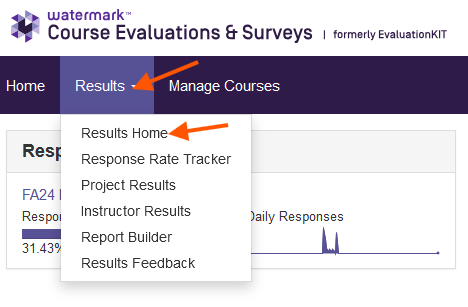
4. You have two options: Build a Report or Project Spotlight.
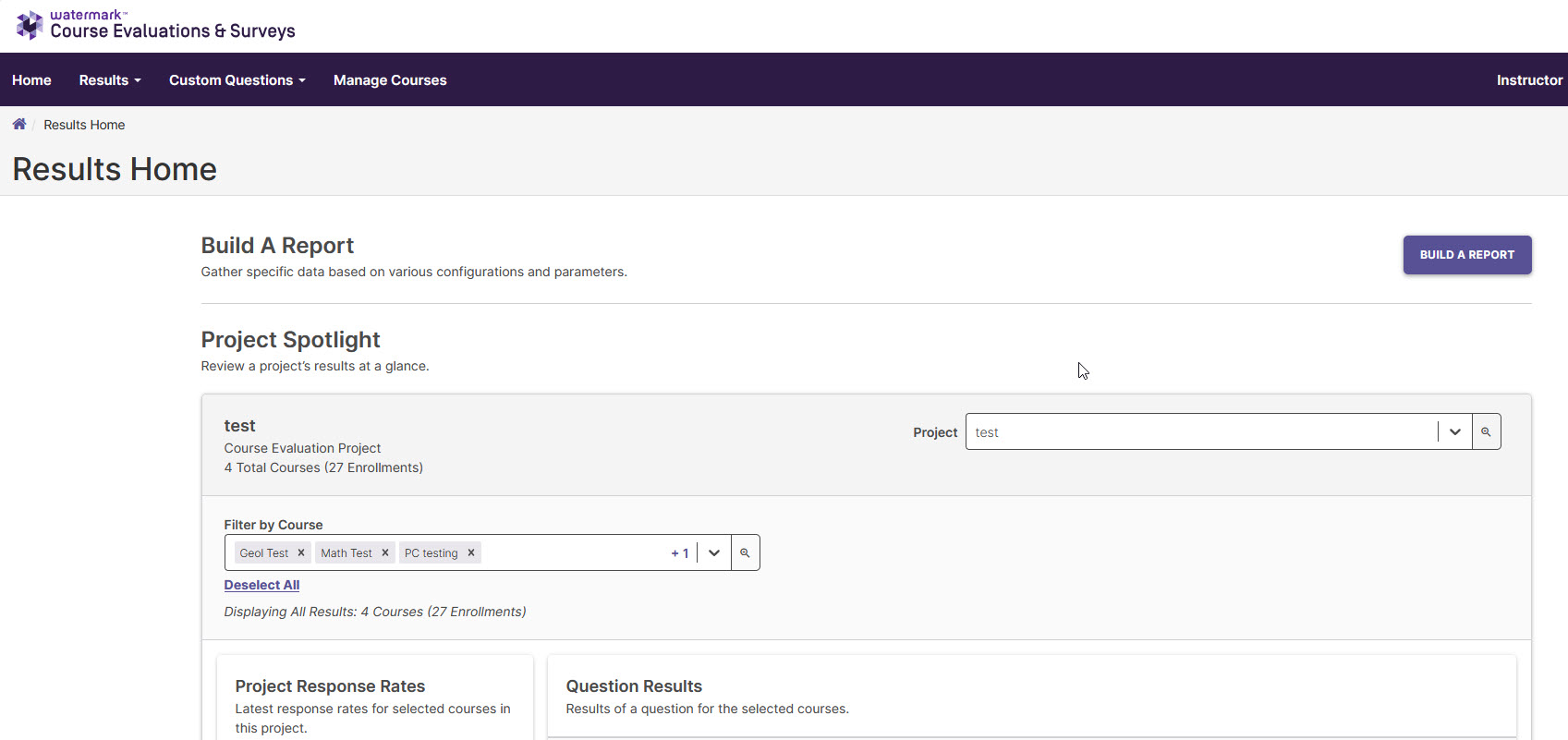
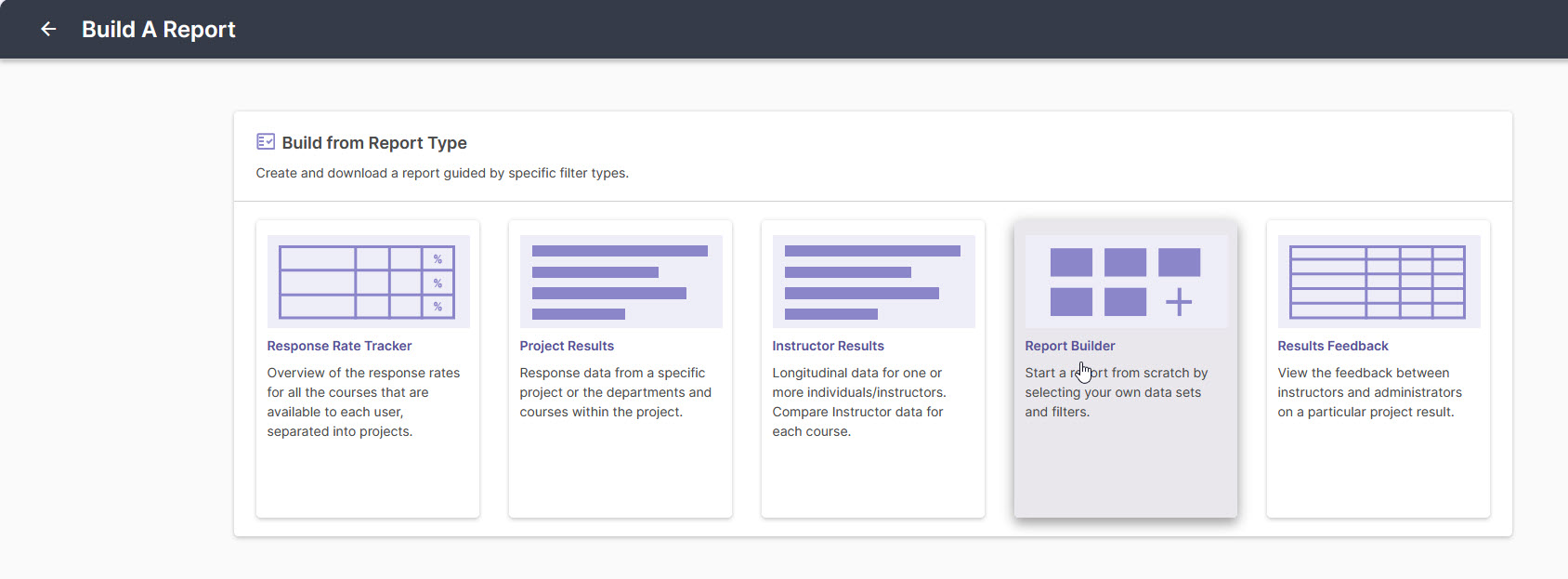
5. Build a Report: Gather specific data based on various configurations and parameters.
a. Click on Build A Report button.
b. This will give you a visual representation of the reports and their purpose.
c. Select the report that best fits your needs.
i. The steps for the various reports are the same steps as under Project Results.
ii. If you have not done a report before, see Types of Results Reporting.
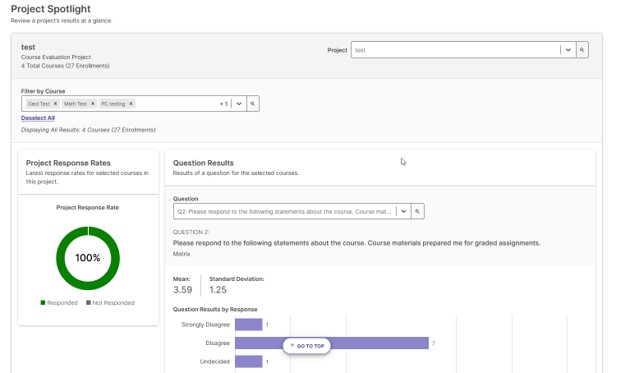
6. Project Spotlight: View results for a specific semester project, course(s), and questions.
a. Select the options for each of the sections.
(1) In the Select Project Box, click the down arrow and select the semester's project you would like to view.
(2) In the Filter by Course Box, click the down arrow. Select the first course you want to view. Repeat this action if you want to add another course or you can click Select All.
(3) In the Project Response Rates area, it will display a graph of the response rate for the courses you selected.
(4) Inthe Question Results Box, you can select a question from the Main Course Evaluation. The graph will show the combined responses to that question from the courses you selected above.
i. Ignore the numbering system of the questions.
Return to Instructions Related to Your Results.