

What is Multi-Factor Authentication?
Multi-Factor Authentication (MFA) helps protect you by making it more difficult for someone else to sign in to your WSU account. It uses two different forms of identity: your password, and an additional authentication method. Even if someone else finds your password, they'll be stopped if they don't have access to your authentication method or device.
WSU Software Impacted by MFA
Currently enrolled WSU students will be required to use Microsoft's MFA software when logging into the following software:
- Blackboard
- All Microsoft Office 365 products associated with your WSU student account
Types of Authentication Methods or Devices:
There are various ways to verify or authenticate:
- Highly Recommended: Microsoft Authenticator App
- Currently may be required for Blackboard Authentication
- Can be downloaded onto your mobile device, only iOS & Android compatible. Click the link below for information, and set up instructions for Microsoft's Authenticator
App for Mobile Devices.
- Currently may be required for Blackboard Authentication
- Non-WSU email address
- Phone number
FAQs
Currently enrolled students who are taking classes are required to register for MFA.
Note: Existing WSU employees who are taking classes are NOT required to register for Microsoft's MFA. WSU staff & faculty use Duo for multi-factor authentication
- Student Employees will use Duo to authenticate while an employee. When they are no longer a student employee and revert to student only status they will use Microsoft MFA.
Additional authentication methods, for example a second phone number, can be added or changed by logging onto the Office 365 site, email app, or by using the mobile application.
To add or change a verification method from within the Office365 app
We recommend using two authentication methods in case one stops working.
To add or change a verification method:
On a computer, go to m365.wichita.edu
Log in with:
Username: myWSUID@wichita.edu (x111x222@wichita.edu)
myWSU ID password
Once logged in to m365
In the lower left corner, select your name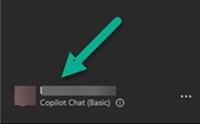
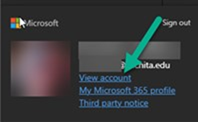
Select View Account
Click Security Info to update or add methods
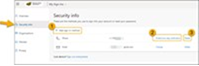
Add your phone number (first method)
Click Add sign-in method.
Select Phone.
Enter your number.
Choose to receive a verification code by text or phone call
Enter the code you received
Click Done
Add the Microsoft Authenticator app (second method)
Click Add sign-in method again
Select the Microsoft Authenticator app.
To add or change a verification method from within the Online Outlook App
- Click on the Account Manager located in the upper right of the o365 window, select 'View account'
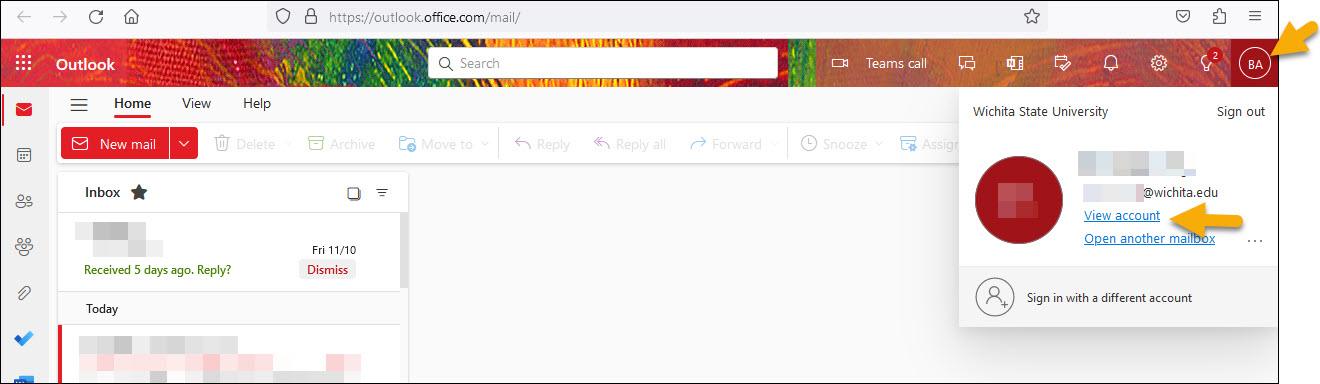
- Click Security info to update or add methods
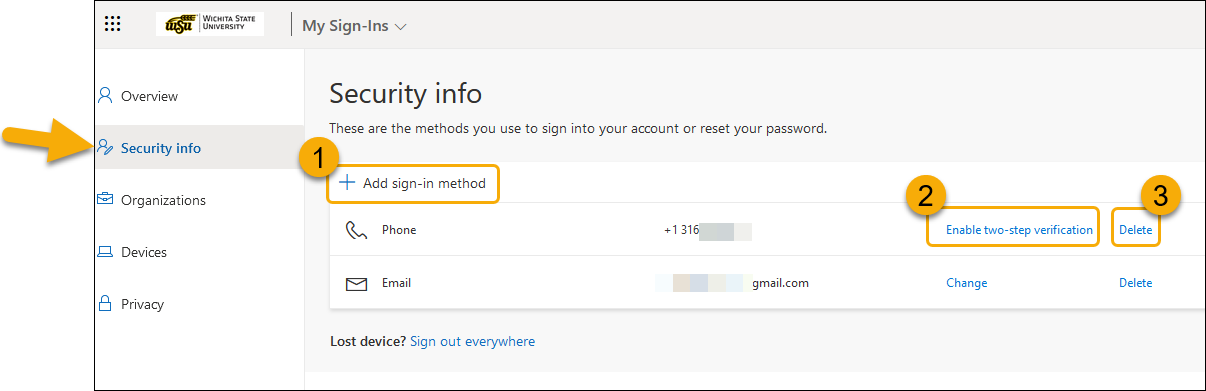
- Click 'Add sign-in method' to add a method and follow the required steps
- Click 'Enable two-step verification' to include as an option for two step verification and follow the required steps
- Click 'Delete' to remove the method
Information regarding the mobile application is listed above.
In certain instances, you may need to sync your Microsoft Authenticator app with the Security Info in your Office365 account.
To sync or add the Microsoft Authenticator app to your Officer365 account:
Once logged into your Office365 account, access Security Info using one of the methods listed above, then sync or add the Microsoft Authenticator app using the following steps:
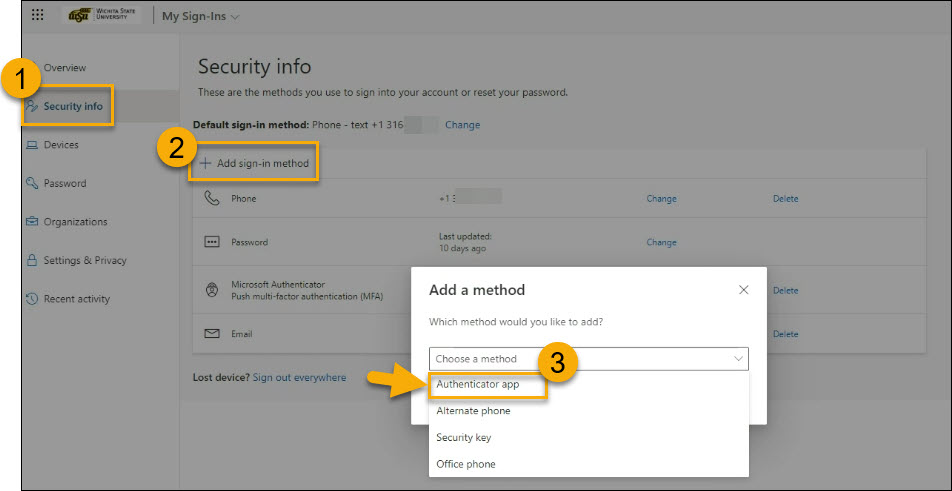
- Click on Security Info
- Click Add sign-in method
- Select Authenticator App
- Once you download and install the Microsoft Authenticator app onto your mobile device,
Click Next
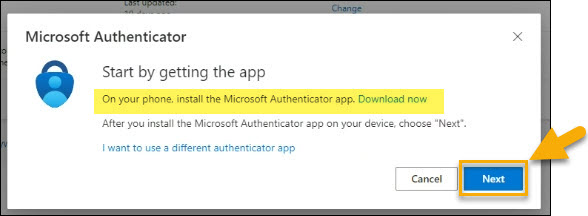
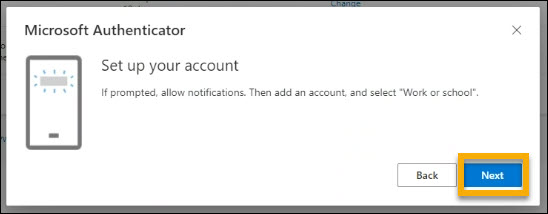
- Complete the steps to set up your account when prompted. Click Next
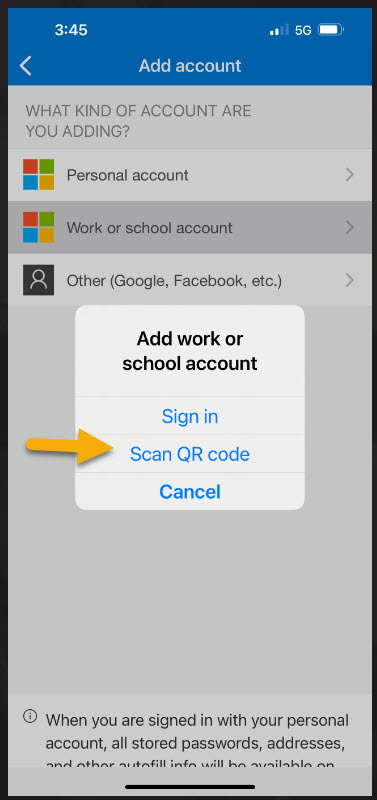
- From the App on your mobile device - Select Scan QR Code
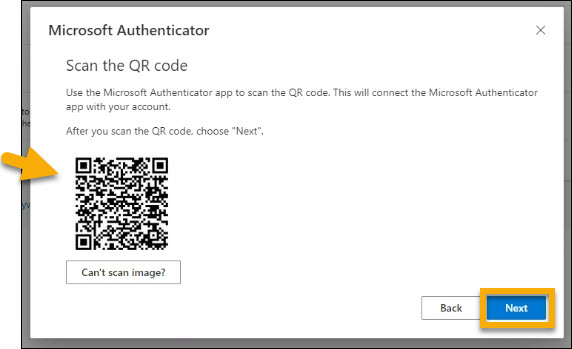
- Scan the QR code with your mobile device and click Next
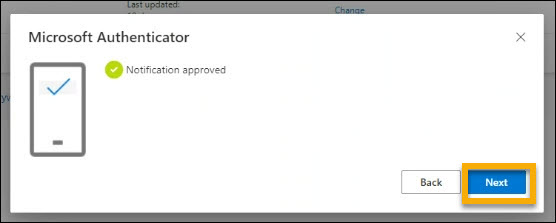
- Enter the Authentication number when requested on your Mobile device
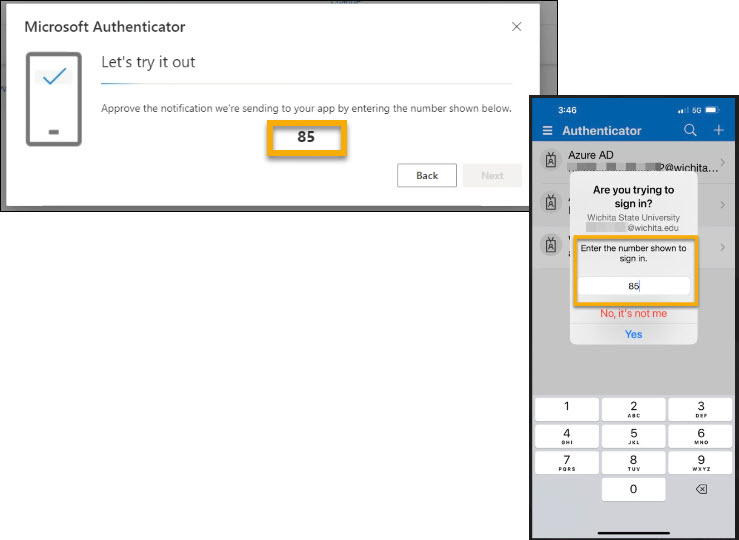
- Click Next once approved
- From the App on your mobile device - Select Scan QR Code
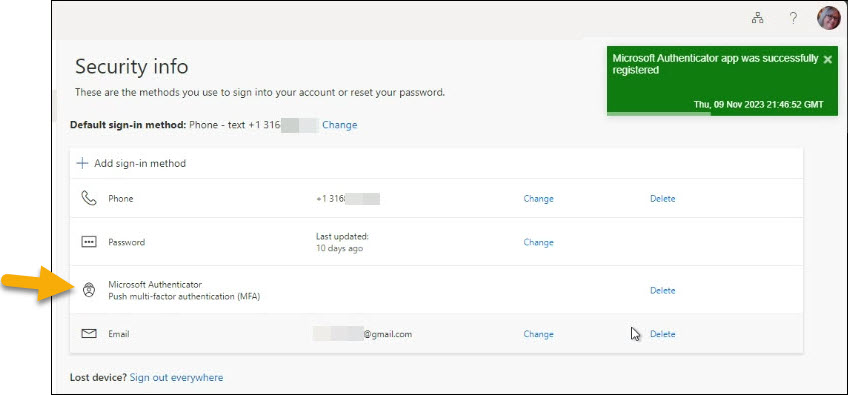
- You will get a notification in the upper right of the Security Info page stating that
the Microsoft Authenticator app was successfully registered and the app will be listed
as an authentication method
If your current information with WSU is incorrect, and you cannot log in to register for MFA, please contact ITS Help Desk during business hours.
Contact Information:
- 316-978-4357, option 1
- Office Hours can be found at wichita.edu/helpdesk.
Once you can log in you can register and/or update your information as needed by logging into Office 365 or by using the Microsoft Authenticator app.